
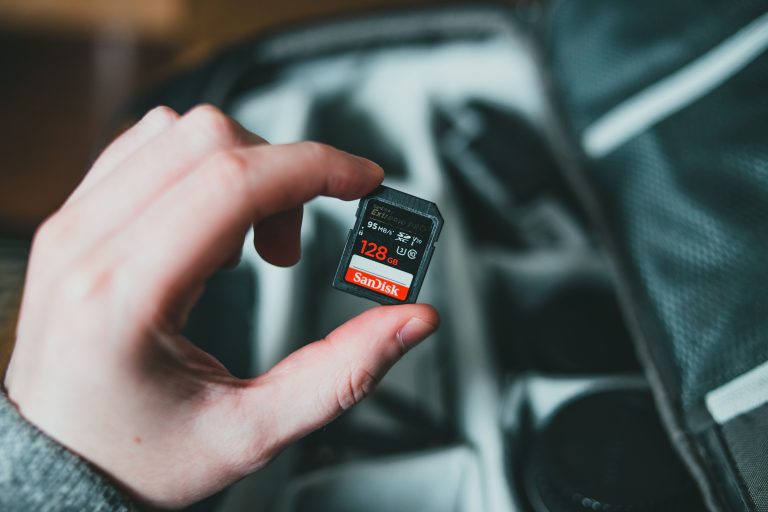
You are scrolling through the day’s shoot on the camera’s rear screen, clearing out the blurry frames. One press too many, or an “Erase all” confirmed a second too fast, and the sharp ones vanish with them. Or you plug the card into a laptop, and the folder that held 400 frames is empty. The instinct is to keep poking at it. The better move is to stop. If you want to recover deleted photos from an SD card, the first thing to know is that deletion usually changes the card’s index rather than erasing the pictures. Whether they come back depends largely on what happens to the card next.
Can You Recover Deleted Photos from an SD Card?
A memory card keeps a running index of what it holds. SDHC cards (up to 32GB) are formatted with FAT32, while SDXC cards (64GB and up) use exFAT, which the SDXC specification requires. Both work like a library catalogue: one set of records says which file sits where, and the pictures occupy blocks elsewhere on the card.
When you delete a photo in the camera, it updates the catalogue entry and marks those blocks as available. It does not normally go back and scrub the pixels. The image data typically stays put until a later write claims the space. That is why software that reads the card directly can often find pictures the camera no longer lists.
Formatting is a different case, though not always a hopeless one. According to the SD Association’s formatter documentation, a quick format only initializes the file system parameters, not the user data area. Much of the image data may therefore still be present. A full format or overwrite format initializes the data area, and a camera’s low-level format works similarly. Check which kind you ran before assuming anything.
Recovery is never guaranteed. It depends on how much has been written since, the health of the card and its controller, and the state of the file system.
What to Do Immediately After Deleting Photos

Power the camera off, take the card out, and stop shooting with it. Every new frame is a write, and the camera is free to place it in exactly the space your deleted photographs occupy. If it is your only card and you are travelling, buying a cheap replacement is better than gambling with the original.
Then resist the urge to tidy up. Don’t format the card to “start clean”, don’t copy new files onto it, and think twice before accepting a “scan and fix” prompt from your operating system. Repair routines can alter the file system structures that recovery tools rely on.
Also limit how often you mount the card. Operating systems create hidden folders and files of their own when they mount a card, which are more writes you didn’t intend. Use a card reader, and let the recovery software do the reading.
How to Recover Deleted Photos from an SD Card

Start with the free options, because they carry no risk.
Check your transfers. Look in the import folders of Lightroom, Apple Photos, Capture One or Image Capture, on any external drives, and on a second card if your camera has dual slots. Frames you thought were lost are sometimes simply sitting on card two.
Check the Trash or Recycle Bin. This only helps if you deleted files from a computer after importing them. Photos deleted in the camera never pass through a computer’s bin. On Windows, files deleted from a removable card generally bypass the Recycle Bin. On a Mac, check the Trash before doing anything else.
Check cloud and backup services. Google Photos, iCloud, Dropbox camera upload, and the companion apps from camera makers may have synced copies. These are often resized or compressed, and they rarely include RAW files, so treat them as a stopgap.
Use dedicated photo recovery software. If none of that works, recovery software is the next step. It scans the card directly, looking for index entries marked as deleted and for the recognizable patterns that start JPEG and RAW files. There are limits. Original file names and folder structure don’t always survive, fragmented files can come back partially, and data that has been overwritten cannot be rebuilt.
Recover Deleted Photos Using Stellar Photo Recovery
One option in that last category is Stellar Photo Recovery, which has Windows and macOS versions and is designed for deleted, formatted, and inaccessible cards. Stellar’s documentation lists RAW support for formats such as Canon CR2/CR3/CRW, Nikon NEF/NRW, Sony ARW/SR2/SRF, Fujifilm RAF, Olympus ORF, Pentax PEF, and Sigma X3F, plus Adobe DNG. Supported formats vary between versions, so check your camera’s file extension against the current list before you start.
The process looks like this:
-
Connect the SD card to your computer with a compatible card reader.
-
Install and launch Stellar Photo Recovery.
-
On the home screen, choose the file type to scan, then click Next.
-
Select the SD card as the location to scan.
-
Start the scan. Choose a deeper scan if the first pass doesn’t find your files.
-
When the scan finishes, preview the recoverable photographs.
-
Tick the ones you need.
-
Click Recover and save them to a different drive, never back onto the card.
Stellar’s own guidance says the demo version lets you scan and preview what is found, and that saving files requires a license. That is useful, because you can judge whether your frames are intact before spending anything. A preview that looks smeared or incomplete is a warning that the data was partly overwritten.
Why Deleted Photos May Not Be Recoverable
Overwriting. This is the most common reason. If new photos were shot or files copied onto the card, the original data may be partly or fully replaced. Software cannot reconstruct what no longer exists.
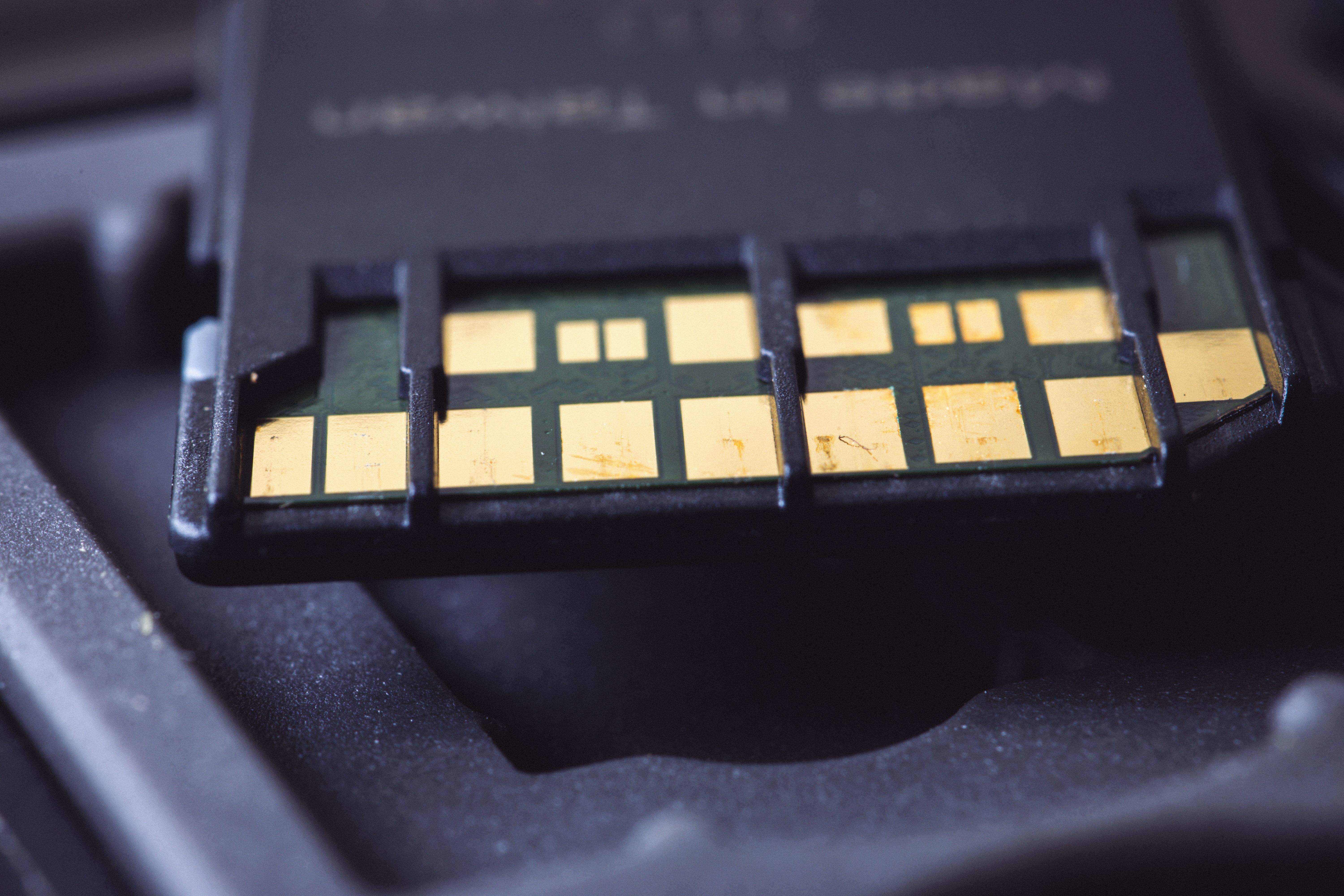
Hardware failure. A card that isn’t detected at all, reports the wrong capacity, or fails during a scan may have a damaged controller or memory chips. That is physical damage, not logical data loss, and recovery software can only work with what the card is willing to report.
Severe corruption. Interrupted writes, pulling the card mid-save, or a battery dying during a burst can damage the file system badly enough that photos come back fragmented or unreadable.
Secure erase or full format. If the data area was initialized, there is usually nothing left to find.
If the card has physical damage, or the pictures are irreplaceable and software fails, stop trying new tools. Each attempt adds wear and risk. A professional data recovery lab can work at the hardware level, though it costs more and offers no guarantee either.
How to Prevent Photo Loss from SD Cards
-
Back up the same day. Copy images to a computer or external drive before you format anything.
-
Verify the transfer by opening a sample of files from the destination, not just checking the file count.
-
Use dual card slots where available, or rotate several smaller cards instead of one large one.
-
Format in the camera rather than on a computer, and only after you have confirmed the backup.
-
Eject cards properly and keep spare batteries charged, since interrupted writes are a common source of corruption.
Conclusion
A deleted photo is often still on the card, but only until something else is written over it. Stop using the card, work through your backups first, and use recovery software only when the files are truly missing. If you reach that point, Stellar Photo Recovery is one option for compatible SD card recovery situations. Save results to another drive, and be realistic about overwritten data and damaged hardware.